
Introduction
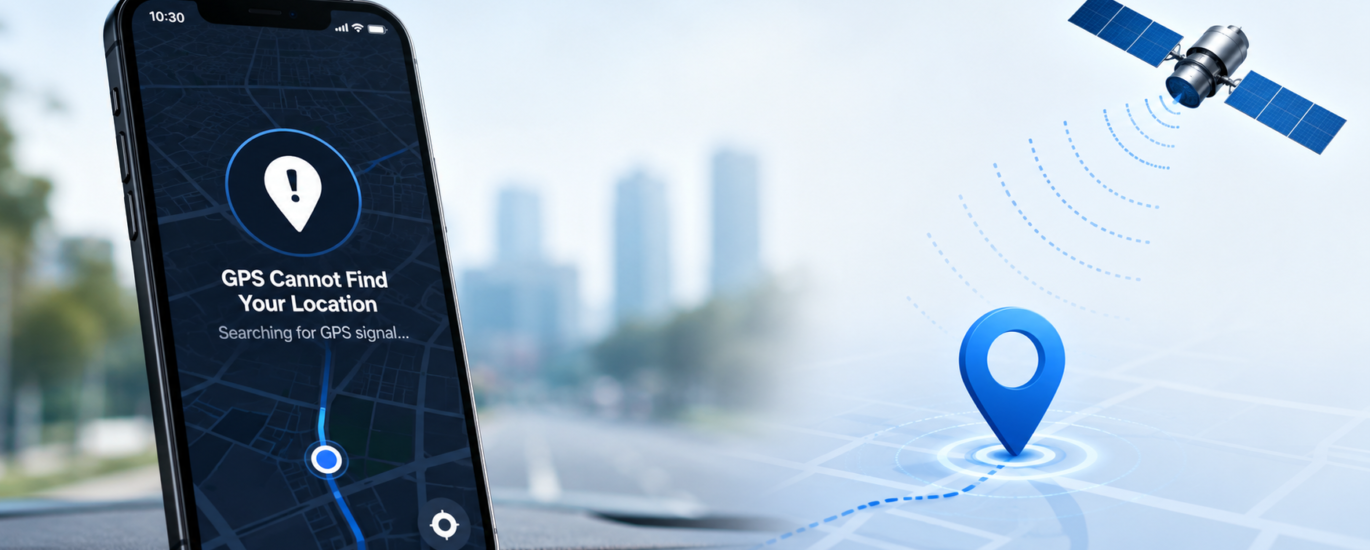
GPS (Global Positioning System) is an important feature that helps smartphones determine their current location for navigation, weather updates, fitness tracking, and other location-based services. Occasionally, a device may be unable to determine its location or may display inaccurate positioning.
This guide provides general information about common GPS problems, possible causes, and standard troubleshooting steps. The information is intended for educational purposes and may help users identify and resolve basic GPS-related issues.
What Does “GPS Cannot Find Your Location” Mean?
When a device cannot determine its current location, it may display messages indicating that the GPS signal is unavailable or continue searching for a location. This can happen because the device is unable to receive sufficient satellite data or because location settings are preventing accurate positioning.
Common signs include:
- Current location cannot be determined.
- GPS takes a long time to connect.
- Navigation cannot begin.
- Location updates stop unexpectedly.
- The displayed location is inaccurate.
- GPS signal is lost repeatedly.
Common Causes
Several factors may affect GPS performance, including:
Location Services Are Disabled
If location services are turned off, applications cannot access GPS information.
Suggested Action
Verify that location services are enabled in your device settings and that applications have permission to access location data.
Limited Satellite Visibility
GPS performs best when the device has a clear view of the sky. Buildings, tunnels, parking structures, mountains, and dense tree cover may reduce signal quality.
Suggested Action
Move to an open outdoor location and allow the device a few moments to establish a satellite connection.
Temporary Software Issues
Occasionally, temporary software problems can interrupt normal GPS operation.
Suggested Action
Restart the device and test location services again.
Restricted Application Permissions
Applications require permission to access location information.
Suggested Action
Review application permissions and confirm that location access is allowed where appropriate.
Battery Saving Features
Power-saving settings may reduce the frequency of location updates to conserve battery life.
Suggested Action
Temporarily disable battery-saving features while using location-based services if necessary.
Outdated Software
Older versions of operating systems or applications may contain issues that affect GPS performance.
Suggested Action
Install available software and application updates according to your device manufacturer’s recommendations.
Environmental Conditions
Weather conditions, surrounding structures, and other environmental factors may temporarily reduce GPS accuracy.
Suggested Action
Test GPS in different outdoor locations to determine whether the issue is related to signal conditions.
General Troubleshooting Checklist
If GPS cannot determine your location, consider the following steps:
- Restart the device.
- Enable location services.
- Verify application permissions.
- Move to an open outdoor area.
- Check whether battery-saving features are affecting location services.
- Install available software updates.
- Update applications that use GPS.
- Test location services using more than one application.
- Restart the device after making changes.
When Additional Assistance May Be Needed
If GPS continues to experience problems after completing standard troubleshooting steps, the issue may involve software configuration or device hardware. In such cases, users may wish to consult the device manufacturer’s documentation, an authorized service provider, or a qualified technician for further evaluation.
Frequently Asked Questions
Why can’t my device determine my location?
Common reasons include disabled location services, limited satellite reception, restricted permissions, outdated software, or temporary software issues.
Does GPS require an internet connection?
GPS receives location information from satellites. However, some applications may require an internet connection to download maps, traffic information, or other online content.
Why is my location inaccurate?
GPS accuracy can be affected by nearby buildings, weather conditions, signal obstruction, software settings, or environmental interference.
How can I improve GPS accuracy?
Keeping your device updated, enabling location services, reviewing application permissions, and using GPS in open outdoor areas may improve location accuracy.
Conclusion
Most GPS location issues are temporary and can often be resolved by reviewing device settings, ensuring location permissions are enabled, installing software updates, and using the device where satellite signals are stronger. Understanding the common causes of GPS problems can help users troubleshoot location issues more effectively.
Disclaimer
This article is provided for general informational and educational purposes only. It is not affiliated with, endorsed by, or sponsored by any smartphone manufacturer, navigation service, software developer, or GPS provider. Product names, trademarks, and brand names belong to their respective owners. Users should refer to their device manufacturer’s official documentation for model-specific instructions.