
Introduction
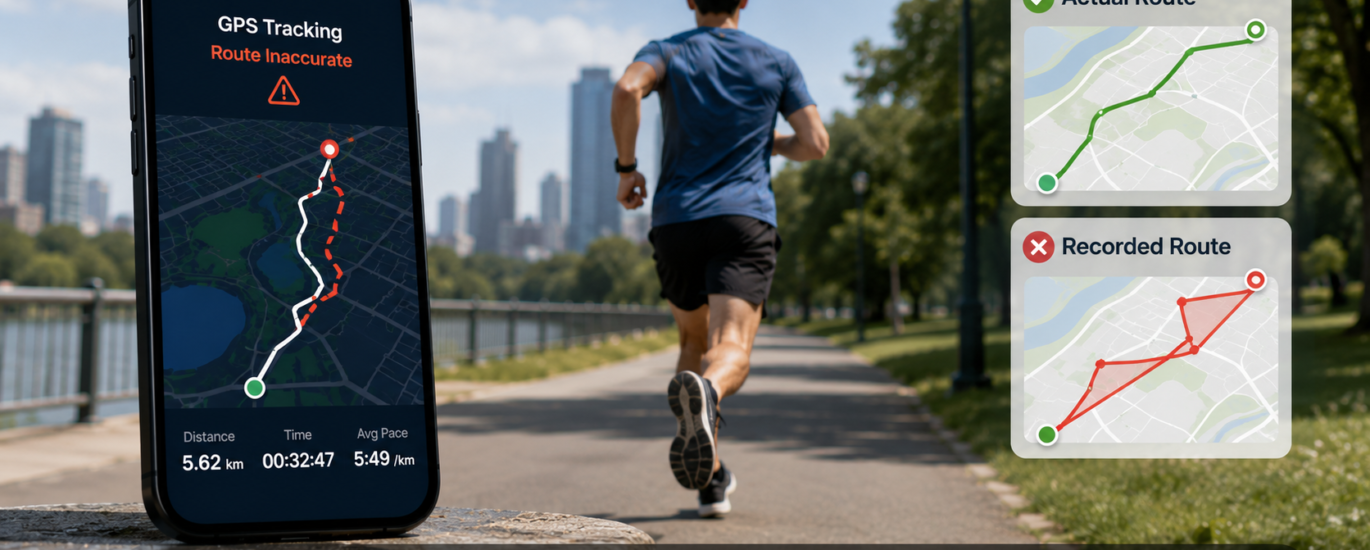
Many fitness applications use GPS technology to record outdoor activities such as walking, running, hiking, cycling, and other distance-based exercises. Accurate location tracking helps calculate distance traveled, pace, speed, elevation, and estimated calories burned. When GPS tracking is inaccurate, the recorded route may not reflect your actual path, leading to incorrect workout statistics.
In most cases, inaccurate route tracking is caused by weak GPS signals, location settings, environmental conditions, or temporary software issues rather than a hardware malfunction. Understanding these factors can help improve GPS accuracy and produce more reliable activity records.
This guide explains why fitness applications may record incorrect routes and provides general troubleshooting steps that users can follow.
What Does “Fitness Apps Record Incorrect Routes” Mean?
A fitness application depends on continuous GPS updates to map your movement. If location information becomes inaccurate or interrupted, the recorded route may contain errors.
Common symptoms include:
- The recorded route differs from your actual path.
- Straight lines appear between different locations.
- Sections of the route are missing.
- The application records extra distance.
- Total distance is shorter than expected.
- Pace and speed calculations appear incorrect.
- Activity maps contain sudden jumps or unexpected turns.
- GPS tracking stops temporarily during the workout.
Common Causes of Incorrect Route Recording
Weak GPS Signal
Fitness applications require a consistent GPS connection throughout the activity. Weak satellite signals can interrupt location tracking and create inaccurate route records.
Weak reception is more common in:
- Dense forests
- Mountain areas
- Urban environments with tall buildings
- Tunnels
- Indoor areas
- Covered pathways
Suggested Action
Whenever possible, begin outdoor activities in areas with a clear view of the sky and wait until GPS has established a stable connection before starting your workout.
GPS Signal Interrupted During Activity
Temporary loss of satellite reception may cause missing sections or unusual lines on the recorded route.
Suggested Action
If GPS signal is temporarily lost, continue moving only after location tracking has resumed whenever practical.
Location Services Are Disabled or Restricted
If location services are disabled or application permissions are limited, the application may not receive continuous GPS updates.
Suggested Action
Verify that location services are enabled and confirm that the fitness application has permission to access location information while it is in use.
Battery Saving Features
Power-saving modes may reduce GPS update frequency to conserve battery life, affecting route accuracy.
Suggested Action
Temporarily disable battery-saving mode before beginning outdoor activities that rely on GPS tracking.
Outdated Application or Device Software
Older software versions may contain issues that affect GPS performance and activity tracking.
Suggested Action
Install available updates for your device’s operating system and fitness application.
Temporary Software Issues
Occasional software problems may interrupt GPS communication during an activity.
Suggested Action
Restart your device before beginning a workout if GPS performance has recently been inconsistent.
Environmental Interference
Large buildings, metal structures, heavy tree cover, and severe weather conditions may temporarily reduce GPS accuracy.
Suggested Action
Whenever possible, perform GPS-based activities in open outdoor environments with minimal signal obstruction.
Low Device Battery
Some devices automatically reduce GPS performance when battery levels become critically low.
Suggested Action
Ensure your device is adequately charged before starting long outdoor activities.
General Troubleshooting Steps
If your fitness application records inaccurate routes, try the following:
- Restart your device.
- Enable location services.
- Verify application location permissions.
- Move to an open outdoor location before starting the activity.
- Wait until GPS determines your location accurately.
- Disable battery-saving mode temporarily.
- Install available application updates.
- Update your device’s operating system.
- Close unnecessary background applications.
- Test GPS performance using another location-based application.
Tips for More Accurate Fitness Tracking
To improve GPS accuracy during outdoor activities:
- Begin tracking only after GPS has locked onto your location.
- Exercise in areas with strong satellite visibility whenever possible.
- Keep your device software updated.
- Install fitness application updates regularly.
- Keep your device adequately charged.
- Avoid covering the device with objects that may interfere with GPS reception.
- Restart your device occasionally to refresh system services.
Frequently Asked Questions
Why does my workout route look different from the path I actually followed?
This usually occurs because of weak GPS signals, temporary satellite interruptions, battery-saving restrictions, or environmental conditions that affect location accuracy.
Why does the application record extra distance?
Inaccurate GPS positioning may cause the device to record unnecessary movement, increasing the total recorded distance.
Can buildings and trees affect GPS tracking?
Yes. Tall buildings, dense forests, tunnels, and other physical obstacles can weaken satellite signals and reduce route accuracy.
Does battery-saving mode affect fitness tracking?
Yes. Battery optimization features may reduce GPS update frequency, resulting in incomplete or inaccurate route recordings.
When should I seek additional assistance?
If multiple fitness applications continue recording incorrect routes after completing standard troubleshooting steps, consult your device manufacturer’s documentation or an authorized service provider for further evaluation.
Best Practices for Reliable GPS Activity Tracking
For the most accurate activity records:
- Keep your operating system updated.
- Update fitness applications regularly.
- Enable location services before starting an activity.
- Wait until GPS has established an accurate position.
- Avoid locations with poor satellite visibility whenever possible.
- Maintain sufficient battery power during long activities.
- Restart your device periodically to maintain stable GPS performance.
Conclusion
Incorrect route recording in fitness applications is commonly caused by weak GPS signals, environmental conditions, battery-saving features, software issues, or interrupted location updates rather than hardware failure. By ensuring strong satellite reception, enabling location services, keeping your device updated, and following standard troubleshooting procedures, you can improve route accuracy and obtain more reliable workout statistics. If inaccurate tracking continues across multiple fitness applications despite completing these steps, additional technical evaluation may be appropriate.
Disclaimer
This article is provided for general informational and educational purposes only. It is not affiliated with, endorsed by, or sponsored by any fitness application, smartphone manufacturer, navigation service, software developer, or GPS provider. All trademarks, product names, and service names are the property of their respective owners.